03: Pod from YAML
03: Pod from YAML
Objective
Learn how to define a Kubernetes Pod using a YAML manifest, deploy it to the cluster, verify it is running, and interact with it using port-forwarding.
Theory
What is a Pod?
A Pod is the smallest deployable unit in Kubernetes. It represents a single instance of a running process in your cluster. A Pod encapsulates one or more containers that share:
- The same network namespace (they share an IP address and port space)
- The same storage volumes
- The same lifecycle (they are scheduled, started, and stopped together)
In most cases, you run a single container per Pod. Multi-container Pods are used for tightly coupled helper processes (covered in the next exercise).
Pod Spec Anatomy
Every Kubernetes resource manifest follows the same top-level structure:
| Field | Description |
|---|---|
apiVersion |
The API version for this resource (e.g., v1 for Pods) |
kind |
The type of resource (e.g., Pod) |
metadata |
Name, namespace, labels, and annotations |
spec |
The desired state of the resource |
Within spec, the key fields for a Pod are:
| Field | Description |
|---|---|
spec.containers |
List of containers to run in the Pod |
spec.containers[].name |
A unique name for the container |
spec.containers[].image |
The container image to use |
spec.containers[].ports |
List of ports to expose from the container |
Pod Anatomy Diagram
graph TB
    subgraph Pod["Pod: kuard"]
        direction TB
        metadata["metadata<br/>name: kuard<br/>labels: app=kuard"]
        subgraph spec["spec"]
            subgraph container["Container: kuard"]
                image["image: ACR/kuard:1"]
                port["containerPort: 8080"]
            end
        end
    end

    style Pod fill:#e1f5fe,stroke:#0288d1,stroke-width:2px
    style spec fill:#fff3e0,stroke:#f57c00,stroke-width:1px
    style container fill:#e8f5e9,stroke:#388e3c,stroke-width:1px
    style metadata fill:#f3e5f5,stroke:#7b1fa2,stroke-width:1px
Pod Lifecycle
Pods go through the following phases:
| Phase | Description |
|---|---|
Pending |
Pod accepted but containers not yet running |
Running |
At least one container is running |
Succeeded |
All containers terminated successfully |
Failed |
At least one container terminated with an error |
Unknown |
Pod state cannot be determined |
Practical Task
Step 1: Create the Pod Manifest
Create a file called kuard-pod.yaml with the following content:
apiVersion: v1
kind: Pod
metadata:
  name: kuard
  namespace: student-XX       # Replace XX with your student number
  labels:
    app: kuard
    team: teamXX              # Replace XX with your student number
spec:
  containers:
    - name: kuard
      image: <ACR_NAME>.azurecr.io/kuard:1
      ports:
        - containerPort: 8080
          name: http
          protocol: TCP
Note: Replace
<ACR_NAME>with the actual ACR name provided by the instructor, andXXwith your student number.
Step 2: Deploy the Pod
kubectl apply -f kuard-pod.yaml
Expected output:
pod/kuard created
Step 3: Verify the Pod is Running
kubectl get pod kuard -n student-XX
Wait until the STATUS column shows Running:
NAME    READY   STATUS    RESTARTS   AGE
kuard   1/1     Running   0          15s
If the Pod is not running, check the events:
kubectl describe pod kuard -n student-XX
Step 4: Port-Forward to the Pod
Forward local port 8080 to the Pod’s port 8080:
kubectl port-forward pod/kuard 8080:8080 -n student-XX
If you are working locally, open your browser and navigate to http://localhost:8080.
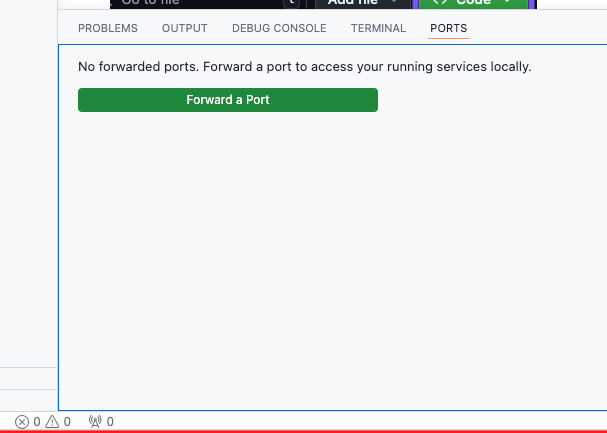
If you are working in GitHub Codespaces, the port forward will not be accessible via localhost in your browser. Instead:
- In VS Code (Codespaces), click the PORTS tab in the bottom panel
- You should see port
8080appear automatically after runningkubectl port-forward - Click the globe icon (or the forwarded address link) next to port
8080to open it in your browser - If the port does not appear automatically, click Forward a Port and enter
8080
You should see the kuard web interface. Press Ctrl+C to stop port-forwarding when you are done.
Step 5: Inspect Pod Logs
kubectl logs kuard -n student-XX
Step 6: Clean Up
kubectl delete pod kuard -n student-XX
Useful Commands
| Command | Description |
|---|---|
kubectl get pod -n student-XX |
List all Pods in your namespace |
kubectl get pod kuard -n student-XX -o wide |
Show Pod with extra details (node, IP) |
kubectl get pod kuard -n student-XX -o yaml |
Show full Pod YAML |
kubectl describe pod kuard -n student-XX |
Detailed Pod info including events |
kubectl logs kuard -n student-XX |
Show container logs |
kubectl logs kuard -n student-XX --follow |
Stream logs in real time |
kubectl label pod kuard env=dev -n student-XX |
Add a label to the Pod |
kubectl get pod -l app=kuard -n student-XX |
List Pods matching a label selector |
kubectl delete pod kuard -n student-XX |
Delete the Pod |
Common Problems
| Problem | Possible Cause | Solution |
|---|---|---|
ImagePullBackOff |
Wrong image name or ACR not accessible | Verify the ACR name and that the cluster has pull permissions |
Pending state |
No node available or resource limits exceeded | Run kubectl describe pod and check Events section |
CrashLoopBackOff |
Container starts and immediately exits | Check logs with kubectl logs |
| Port-forward fails | Pod not in Running state | Wait for Pod to be Running first |
Best Practices
- Always set labels — Labels are the primary mechanism for selecting and organizing resources in Kubernetes.
- Use meaningful names — Pod names should be descriptive and follow a consistent naming convention.
- Specify ports explicitly — Even though Kubernetes does not enforce port declarations, specifying them documents which ports your application uses.
- Work in your namespace — Always include
-n student-XXor set your default namespace to avoid conflicts with other participants. - Do not use Pods directly in production — Pods are ephemeral. Use Deployments or other controllers to manage Pods with desired state, replicas, and rolling updates.
Summary
In this exercise you learned:
- The structure of a Kubernetes Pod manifest (apiVersion, kind, metadata, spec)
- How to define a container with an image and ports
- How to deploy a Pod using
kubectl apply - How to verify a Pod is running with
kubectl getandkubectl describe - How to access a Pod locally using
kubectl port-forward - How to view logs and add labels to Pods
Review Questions
- What is the relationship between a Pod and a container?
- What happens to the Pod if the container inside it crashes?
- Why do we specify
containerPortin the Pod spec if Kubernetes does not enforce it? - What is the difference between
kubectl getandkubectl describe? - Why should you not use standalone Pods in production workloads?